You're enrolled. Now let's get your child talking to Mitra.
It takes about two minutes. Your child opens the app you already use, sends one short code to link the account, and they're in. Here's exactly what to do.
First, grab your enrollment code
When you signed up, we showed you a short enrollment code — it looks like MITRA-XXXX. Your child sends this to Mitra the first time they message her, and it links the chat to their account.
Can't find it? Sign in to your parent portal and generate a fresh code on your child's Connect page. (Or email support@mitratutor.com and we'll sort it out.)
Pick your messaging app
Use whichever one your child already texts on. The steps are slightly different for each.
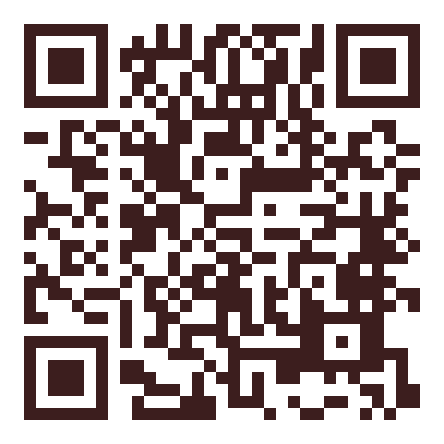
 KakaoTalk
Most popular in Korea
KakaoTalk
Most popular in Korea
- On your child's phone, open the button or scan the QR code to add the Mitra channel (채널 추가).
- Tap into the chat and have your child send a message first — anything, even just "hi."
- When Mitra asks, send your enrollment code (your code above). That links the account, and you're ready to go.
 Telegram
Press Start to turn Mitra on
Telegram
Press Start to turn Mitra on
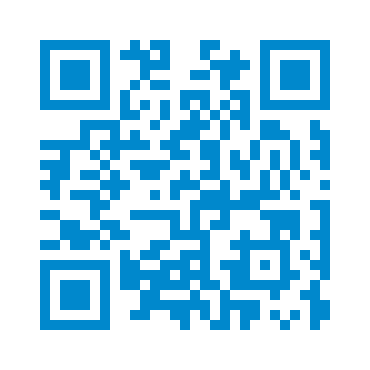
- On your child's phone, open the button or scan the QR code to open the @Mitradhdbot chat.
- Tap the big START button. This is the step that turns Mitra on — until your child presses Start, Telegram won't let her send a single message.
- If we matched your child's Telegram username at signup, Mitra greets them right away. If not, just send your enrollment code (your code above) and she'll link the account.
 WhatsApp
Best outside Korea
WhatsApp
Best outside Korea
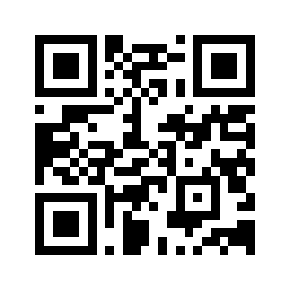
- On your child's phone, tap the button or scan the QR code to open a chat with Mitra.
- Have your child send your enrollment code as the first message.
- Mitra matches the code to your child's account and links it automatically. Done.
Not sure which to use?
- In Korea? KakaoTalk is what most families use — your child already lives in it.
- Outside Korea? WhatsApp or Telegram are the easy picks.
- Want Mitra to gently check in? Telegram is the only app where she can start the conversation — after the first Start.
Pick one to start. New phone, new account, or switching apps later? Generate a fresh code anytime on your child's Connect page in the parent portal, and your child picks up right where they left off.
If something's not working
Mitra isn't replying (or never messaged us)
On Telegram: your child has to press the START button once. Telegram blocks every message from Mitra until they do — so if she's gone silent, that Start almost certainly hasn't happened yet.
On KakaoTalk: your child has to send the first message — Mitra can't start the chat. Make sure they've added the channel and sent something.
On any app: double-check the enrollment code was sent and typed correctly. Still stuck? Email support@mitratutor.com and we'll link the account manually.
I lost my enrollment code
Sign in to your parent portal and generate a fresh code on your child's Connect page. It takes a few seconds. Prefer we handle it? Email support@mitratutor.com.
Mitra says she doesn't recognize my child
This usually means the chat isn't linked to the account yet. Have your child send the enrollment code again. On WhatsApp, make sure they're messaging from the phone number you gave us at signup.
Still stuck? We'll sort it out — email support@mitratutor.com.
Can my child use more than one app?
Stick to one app for the best experience, so Mitra keeps everything in one continuous conversation. If your child needs to switch apps, generate a fresh code on their Connect page in the parent portal to reconnect on the new one.
My child got a new phone or lost access to their account
Easy fix. Sign in to your parent portal and generate a fresh connection code on your child's Connect page. Your child sends it from the new phone or app and picks up right where they left off, with the same tutor and the same history. (Stuck? Email support@mitratutor.com.)
What happens next
The first session is just a conversation — Mitra gets to know your child before any teaching starts. That's by design. The first few sessions build the relationship; the learning grows from there.
Want the full picture? Read Mitra's letter on how to work with her →